
Finding your IP address shouldn't feel like searching for a needle in a haystack. Whether you're troubleshooting network issues, enhancing online privacy, or setting up security protocols, knowing how to locate both your private and public IP addresses is essential. This guide walks you through simple methods for Windows, macOS, Linux, and online tools, empowering you to take control of your network identity in minutes.
Table of Contents
- Understanding IP Addresses: Basics And Types
- Prepare Your Devices: What You Need Before Checking Your IP Address
- Step-By-Step Methods To Check Your IP Address On Windows, macos, And Linux
- Troubleshooting Common Issues And Verifying Your IP Address
- Discover More Powerful IP Tools At Instant IP Lookup
- FAQ
Key takeaways
| Point | Details |
|---|---|
| Public vs private IPs | Your device has both a local network IP (private) and an internet-facing IP (public) assigned by your ISP. |
| Multiple detection methods | You can find IP addresses through system settings, command line tools, or instant online lookup services. |
| IPv4 and IPv6 coexist | Modern networks support both 32-bit IPv4 addresses and newer 128-bit IPv6 addresses for expanded connectivity. |
| Dynamic IPs change regularly | Most home users receive dynamic public IPs that rotate every 24 to 48 hours or after router restarts. |
Understanding IP addresses: basics and types
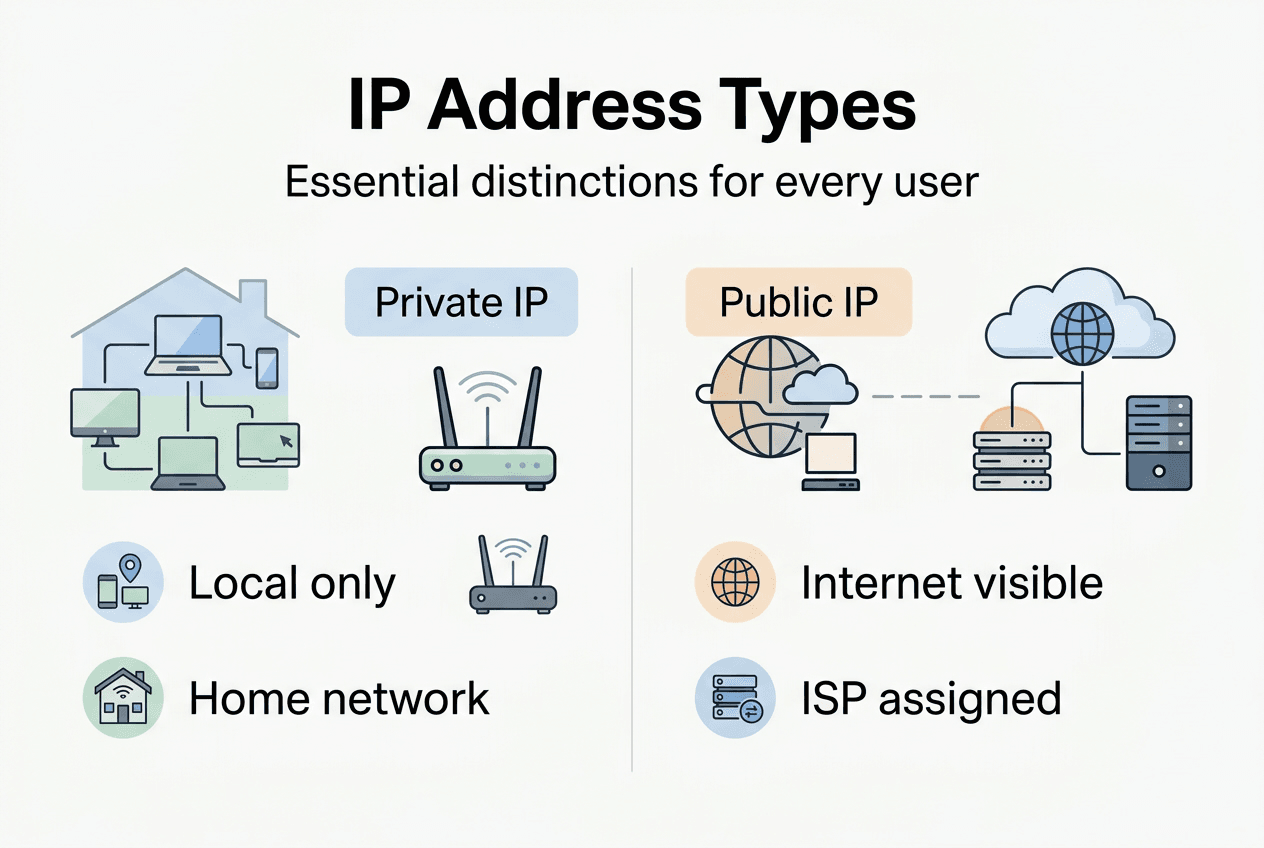
Every device connected to the internet receives two IP addresses: private and public. Think of your private IP as your apartment number within a building, while your public IP represents the building's street address that the outside world sees. Your router assigns private IPs to devices on your local network, creating an internal addressing system that keeps your home network organized.
Public IP addresses, assigned by your Internet Service Provider, allow your devices to communicate with servers and websites across the internet. This internet-facing identifier enables data packets to find their way back to your specific network among billions of connected devices worldwide. Private IPs add security by remaining invisible to external networks, since they're not routable on the public internet.
IPv4 and IPv6 represent two primary versions of IP addressing schemes. IPv4 uses 32-bit dotted decimal notation like 192.168.1.1, offering about 4.3 billion possible addresses. IPv6 employs 128-bit hexadecimal notation such as 2001:0db8:85a3:0000:0000:8a2e:0370:7334, providing virtually unlimited addresses to accommodate the explosive growth of internet-connected devices.
Here's how these IP types differ in practical terms:
- Private IPs typically start with 10.x.x.x, 172.16.x.x through 172.31.x.x, or 192.168.x.x ranges
- Public IPs can be any address not reserved for private networks
- IPv4 addresses contain four number groups separated by periods
- IPv6 addresses contain eight groups of hexadecimal digits separated by colons
| IP Type | Format Example | Visibility | Assignment |
|---|---|---|---|
| Private IPv4 | 192.168.1.100 | Local network only | Router/DHCP server |
| Public IPv4 | 203.0.113.45 | Internet-facing | ISP |
| Private IPv6 | fd00::1 | Local network only | Router |
| Public IPv6 | 2001:db8::1 | Internet-facing | ISP |
Pro Tip: Your private IP rarely changes unless you reset your router or manually configure it, while your public IP typically changes periodically unless you pay for a static address.
Understanding these fundamentals helps you interpret results when checking your IP addresses and their purposes. You'll recognize which IP serves which function, making network troubleshooting far more intuitive.
Prepare your devices: what you need before checking your IP address
Before diving into IP address detection, ensure your device maintains an active network connection through Wi-Fi or Ethernet cable. Without connectivity, your device won't have an assigned IP address to discover. IP addresses are automatically assigned when devices connect to a router and subsequently to the internet, so disconnected devices display no valid IP information.
Knowing your operating system determines which method you'll use. Windows, macOS, and Linux each offer different pathways to IP information, from graphical settings panels to command line interfaces. Identify whether you're running Windows 10, Windows 11, macOS Monterey or newer, or a Linux distribution like Ubuntu or Fedora.
Decide whether you need your private or public IP address before starting. Private IPs help diagnose local network issues, configure port forwarding, or set up device-specific rules on your router. Public IPs matter for remote access setups, understanding your internet footprint, or verifying VPN functionality.
You'll need access to your device's settings menu or command line terminal depending on your chosen method. Windows users should know how to open Command Prompt or PowerShell. Mac users need Terminal access. Linux users typically live in Terminal already, but confirm you have permission to run network commands.
Here's your pre-check checklist:
- Verify active network connection (check Wi-Fi icon or Ethernet indicator)
- Confirm operating system version for accurate instructions
- Determine if you need private IP, public IP, or both
- Ensure administrative access if using command line tools
- Have a notepad ready to record IP addresses for reference
Consider whether you want to check a static or dynamic IP configuration. Most residential internet connections use dynamic addressing where your public IP changes periodically. Business connections often purchase static IPs that never change, simplifying remote access and server hosting.
Gathering this information upfront streamlines the checking process. You won't waste time trying Windows methods on a Mac or searching for settings that don't exist on your system.
Step-by-step methods to check your IP address on Windows, macOS, and Linux
Windows offers the easiest graphical method through Settings. Open Settings, navigate to Network & Internet, then click on your connection type (Wi-Fi or Ethernet). Scroll down to find Properties, where you'll see your IPv4 and IPv6 addresses listed under the network details section. This method requires zero technical knowledge and works perfectly for quick checks.
For command line enthusiasts, Windows provides the ipconfig utility. Open Command Prompt by typing cmd in the search bar, then enter ipconfig. Your private IP appears next to "IPv4 Address" under your active network adapter. For more detailed information including DNS servers and subnet masks, use ipconfig /all instead.
Control Panel offers a third Windows option through the Network and Sharing Center. Click on your active connection, then Details button to view comprehensive network information. Windows offers multiple methods including these three approaches, each serving different user preferences and technical comfort levels.
macOS users can check their IP through System Preferences (or System Settings on macOS Ventura and later). Click Network, select your active connection from the sidebar, and your private IP displays prominently. For IPv6, click the TCP/IP tab to see both IPv4 and IPv6 addresses if your network supports dual-stack configuration.

Terminal commands work identically across macOS and many Linux distributions. Type ifconfig in Terminal to display network interface information. Your private IP appears next to "inet" under your active interface (usually en0 for Wi-Fi or en1 for Ethernet on Mac). macOS and Linux users rely on Terminal commands for quick, scriptable IP checks.
Linux systems prefer the newer ip addr command over the deprecated ifconfig. Open Terminal and type ip addr show or the shortened ip a. Your IPv4 address appears after "inet" and IPv6 after "inet6" under your active network interface, typically named eth0 for Ethernet or wlan0 for wireless connections.
Checking your public IP requires different tools since it's assigned by your ISP and not visible in local settings. Visit any IP lookup website by searching "what is my IP" in your browser. Alternatively, use command line tools: Windows PowerShell users can run "(Invoke-WebRequest -Uri "https://api.ipify.org").Content`, while macOS and Linux users type curl ifconfig.me in Terminal.
Here's how methods compare across operating systems:
| Method | Windows | macOS | Linux | Shows Private IP | Shows Public IP |
|---|---|---|---|---|---|
| Settings/System Preferences | ✓ | ✓ | ✓ | Yes | No |
| Command line (ipconfig/ifconfig) | ✓ | ✓ | ✓ | Yes | No |
| IP command (ip addr) | Limited | No | ✓ | Yes | No |
| Online lookup tools | ✓ | ✓ | ✓ | No | Yes |
| curl/PowerShell commands | ✓ | ✓ | ✓ | No | Yes |
Pro Tip: Bookmark an IP lookup page on your phone and computer for instant public IP checks anytime, especially useful when connecting to new networks or testing VPN connections.
Each method serves specific scenarios. Graphical interfaces suit beginners and occasional checks. Command line tools excel for scripting, automation, and rapid troubleshooting. Online tools remain essential for checking your public IP on Windows 11 and other systems. Mix and match methods based on your immediate needs and technical comfort.
When checking IPv6 addresses specifically, verify your ISP and network equipment support IPv6 connectivity. Not all networks have migrated to dual-stack configurations yet. Understanding IPv4 vs IPv6 differences helps interpret results when you see both address types or only IPv4.
Troubleshooting common issues and verifying your IP address
Seeing multiple IP addresses in command outputs confuses many users checking their network settings. Each network adapter, whether physical Ethernet, Wi-Fi, or virtual VPN interfaces, receives its own IP address. Focus on the adapter currently transmitting data, usually indicated by "connected" status or non-zero sent/received packet counts.
Public IP addresses change every 24 to 48 hours for most residential users due to dynamic allocation by ISPs. If you checked your public IP yesterday and it differs today, your ISP's DHCP lease expired and assigned a new address. Router restarts force immediate IP changes as your device requests a fresh lease from the ISP.
IPv6 connectivity issues often stem from incomplete network support along the connection path. Your device might have an IPv6 address, but if your ISP, router, or destination website doesn't support IPv6, traffic falls back to IPv4 automatically. Test IPv6 connectivity using dedicated test websites that confirm whether you can reach IPv6-only servers.
Recognizing private versus public IPs prevents confusion during troubleshooting. Private IPs always fall within reserved ranges: 10.0.0.0 to 10.255.255.255, 172.16.0.0 to 172.31.255.255, or 192.168.0.0 to 192.168.255.255 for IPv4. Any IP outside these ranges represents a public address assigned by your ISP or a data center.
Common interpretation errors include:
- Mistaking the router's gateway address (often 192.168.1.1) for your device's IP
- Confusing subnet mask values with actual IP addresses
- Assuming your private IP matches what websites see (they see your public IP)
- Not recognizing link-local addresses like 169.254.x.x, which indicate DHCP failure
Verifying IP accuracy requires cross-checking multiple sources. Compare your command line results against system settings, then verify public IP through online lookup tools. Discrepancies usually indicate VPN or proxy usage, network adapter confusion, or caching issues requiring a fresh network restart.
Online IP lookup tools provide validation beyond simple address display. They confirm geolocation data, ISP information, and connection type, helping verify you're seeing accurate, current information. If geolocation shows a different city or country than your actual location, you might be connected through a VPN or proxy without realizing it.
Understanding why your IP changes on Wi-Fi networks helps distinguish normal behavior from actual problems requiring technical support.
When troubleshooting persists beyond basic checks, document your findings systematically. Note which IP addresses appear where, timestamp your checks, and record any error messages. This documentation proves invaluable when contacting ISP support or posting on technical forums for assistance.
Discover more powerful IP tools at Instant IP Lookup
While manual methods teach you network fundamentals, web-based tools provide instant results with additional context. Instant IP Lookup offers free, comprehensive IP detection that goes beyond basic address display. You'll see your public IP alongside ISP details, geolocation data, and connection characteristics in seconds.
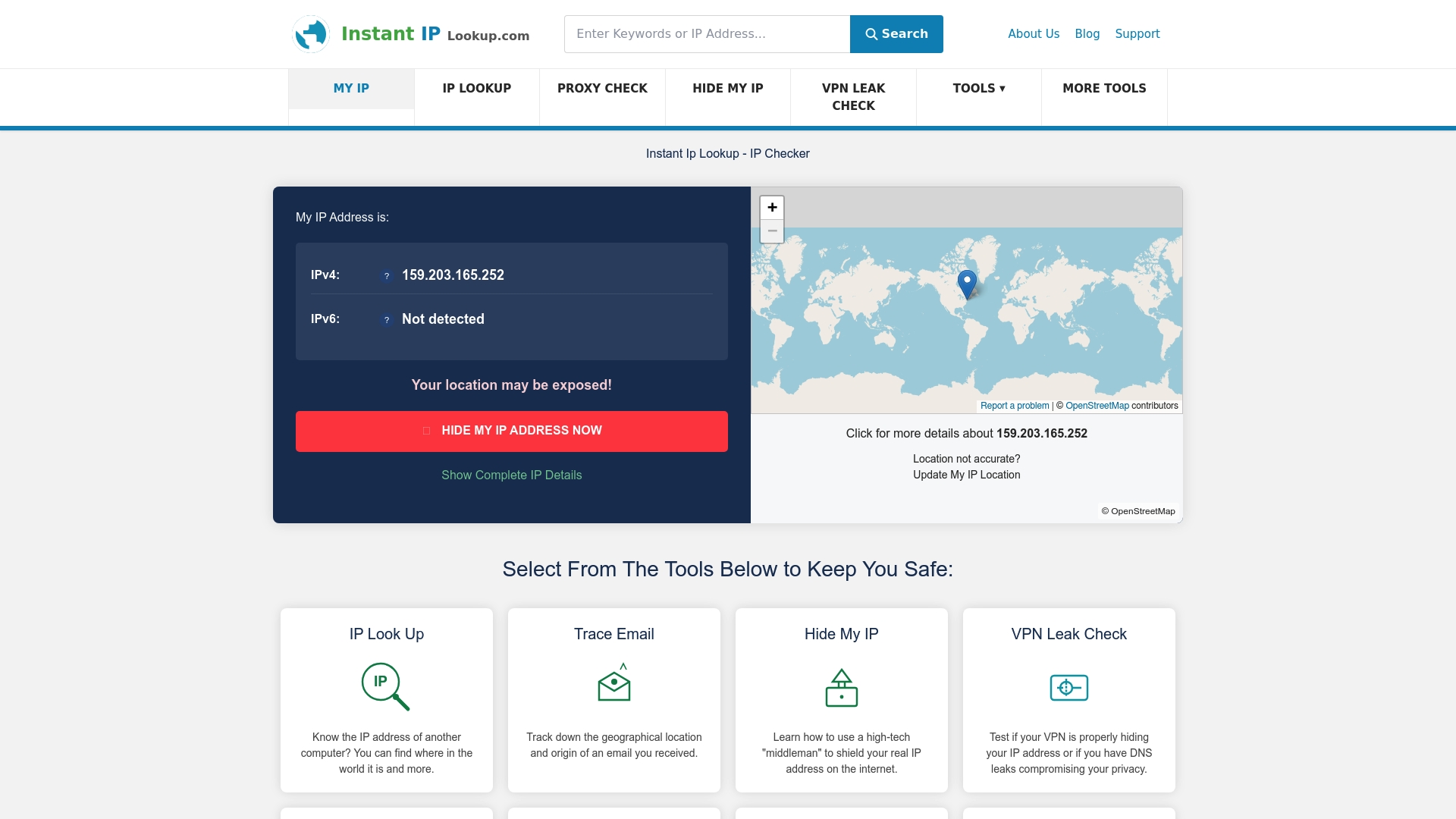
The platform's IP lookup tool eliminates command line complexity for users who need quick answers. Simply visit the site and your public IP appears automatically, accompanied by city-level geolocation and ISP identification. This immediate feedback helps verify VPN connections, diagnose network changes, or document your internet footprint for security audits.
Global IP to location finder capabilities extend beyond personal IP checks. Trace any public IP address worldwide to understand approximate geographic origin, useful for analyzing server locations, investigating suspicious connections, or verifying content delivery network endpoints. Understanding what IP lookup results actually mean transforms raw data into actionable network intelligence for privacy-conscious users and technical professionals alike.
FAQ
How do I find my public vs private IP address?
Your private IP lives in your device's network settings or command line output (ipconfig on Windows, ifconfig or ip addr on macOS/Linux). Check your public IP address by visiting any IP lookup website or using curl commands in Terminal. Private IPs remain invisible to the internet, while public IPs identify your network to external servers.
Can my IP address tell someone where I live?
IP addresses reveal approximate location, typically city or metropolitan area, not your exact street address. IP geolocation databases map IP ranges to geographic regions based on ISP registration data. Accuracy varies by provider, with some pinpointing neighborhoods while others only identify the correct state or country.
Why does my IP address keep changing?
Most ISPs assign dynamic public IPs that rotate periodically to manage limited IPv4 address pools efficiently. Your IP changes when the DHCP lease expires, typically every 24 to 48 hours, or immediately after router restarts. Understanding static versus dynamic IP assignment clarifies whether your changing IP represents normal behavior or a configuration you can modify.
How can I check if my IPv6 is working correctly?
Use online IPv6 test sites that display your IPv6 address if connectivity exists. If pages load quickly under 2 seconds, your Happy Eyeballs implementation works correctly, allowing seamless fallback to IPv4 when IPv6 fails. Verify your IPv6 address directly through specialized lookup tools that distinguish between IPv4 and IPv6 connectivity paths.